

Is Apple Fitness sharing not working? This feature is a great way to stay active and stay connected with friends and family, but it can be frustrating when it doesn’t work as expected. So, we have created this extensive guide to help you fix the error using all possible solutions listed below.
How to fix Apple Fitness sharing not working
From updating iOS and watchOS to checking your fitness sharing settings, we’ll cover everything you need to know to fix this issue.
1. Update iOS and watchOS
For Apple Fitness sharing to work effectively, your iPhone and Apple Watch must be updated to the latest version. Software updates can resolve compatibility issues that may be causing this error. New updates often include bug fixes and improvements to help resolve functionality issues.
Here’s how:
Update iOS
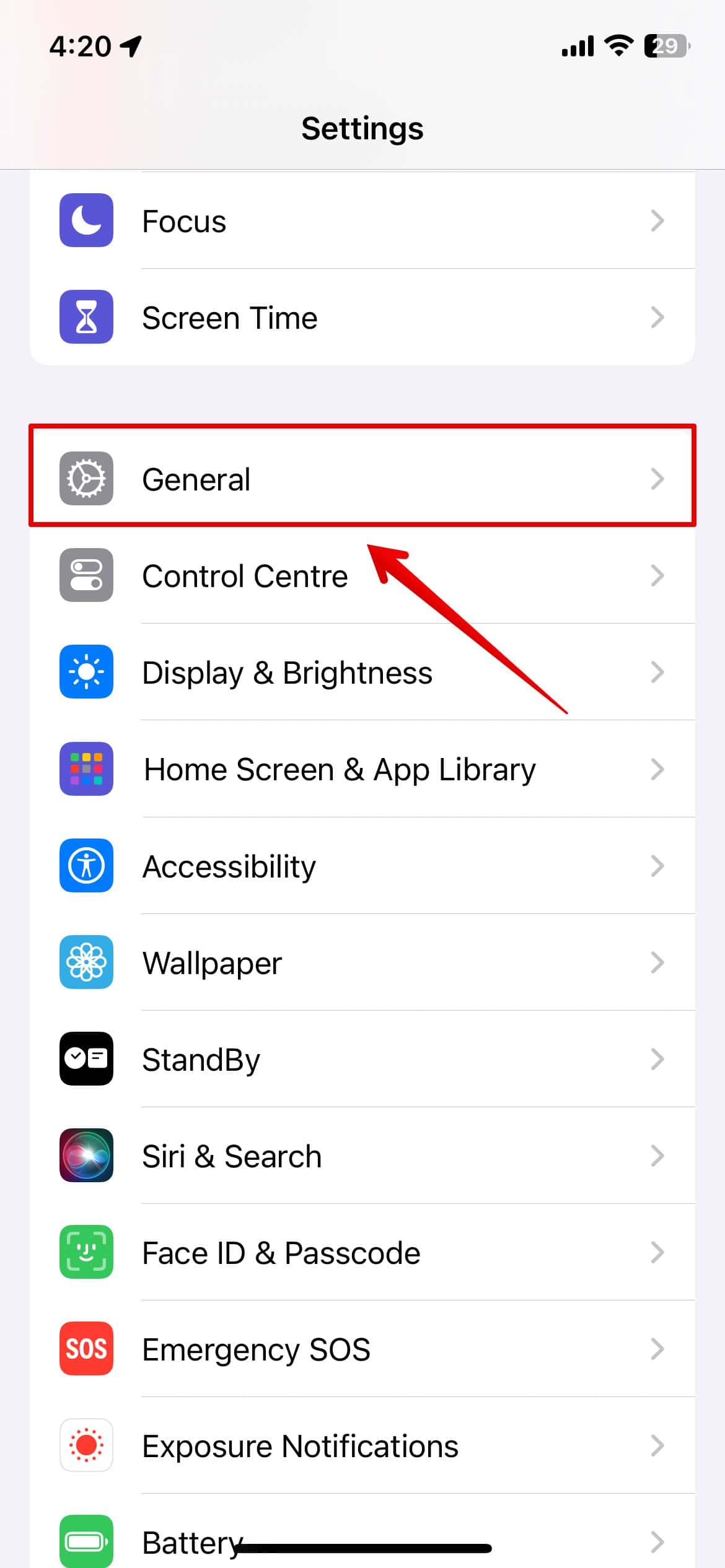
- Open setting and go to general.
- tap Software updates
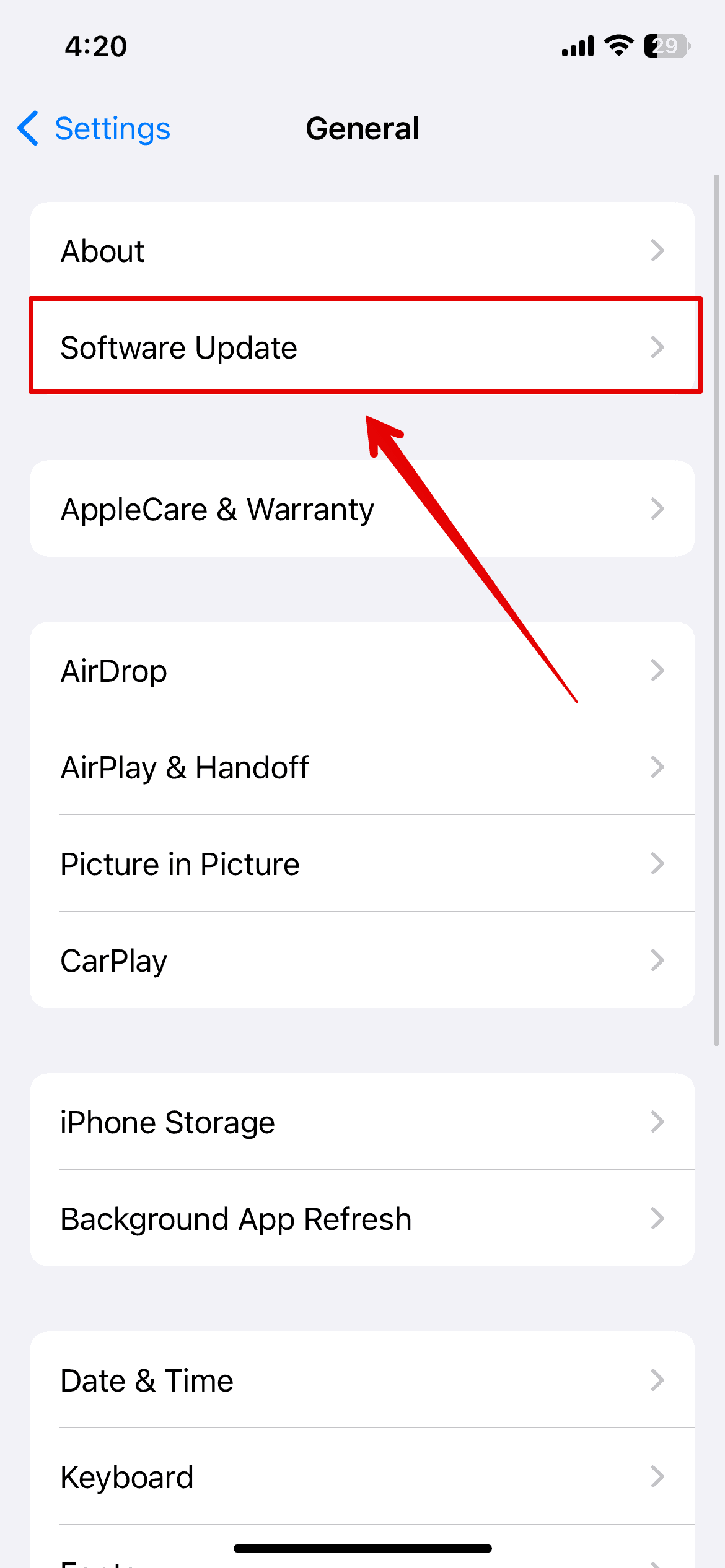
- Wait until the system checks for updates and select download or install.


This process may take several minutes to complete. Once done, you can access your Apple Watch to update.
Update watchOS
- Make sure your watch is connected to Wi-Fi
- next, setting App.
- tap general
- select Software updates
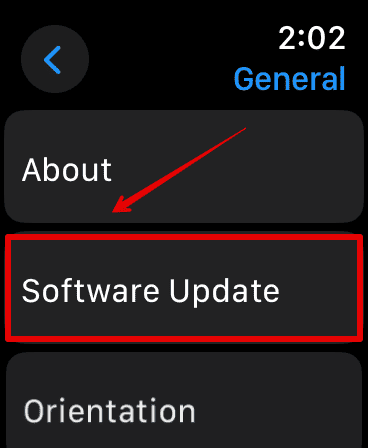

Wait a few seconds and then install the update if it is available. Please check if the sharing feature is currently working.
2. Check your fitness sharing settings
If updating your device doesn’t resolve the issue, you may need to revisit your fitness app’s sharing settings. Try adding your friend again to see if they accepted your invitation.
Verifying these settings will ensure that the feature is configured correctly and ready for use. Here’s how to set up Apple Fitness sharing:
- Open the Fitness app on your iPhone.
- Tap share Menu below.
- Check if your friends have been added. If not, add your friends now.
- Tap the account icon in the top right corner.
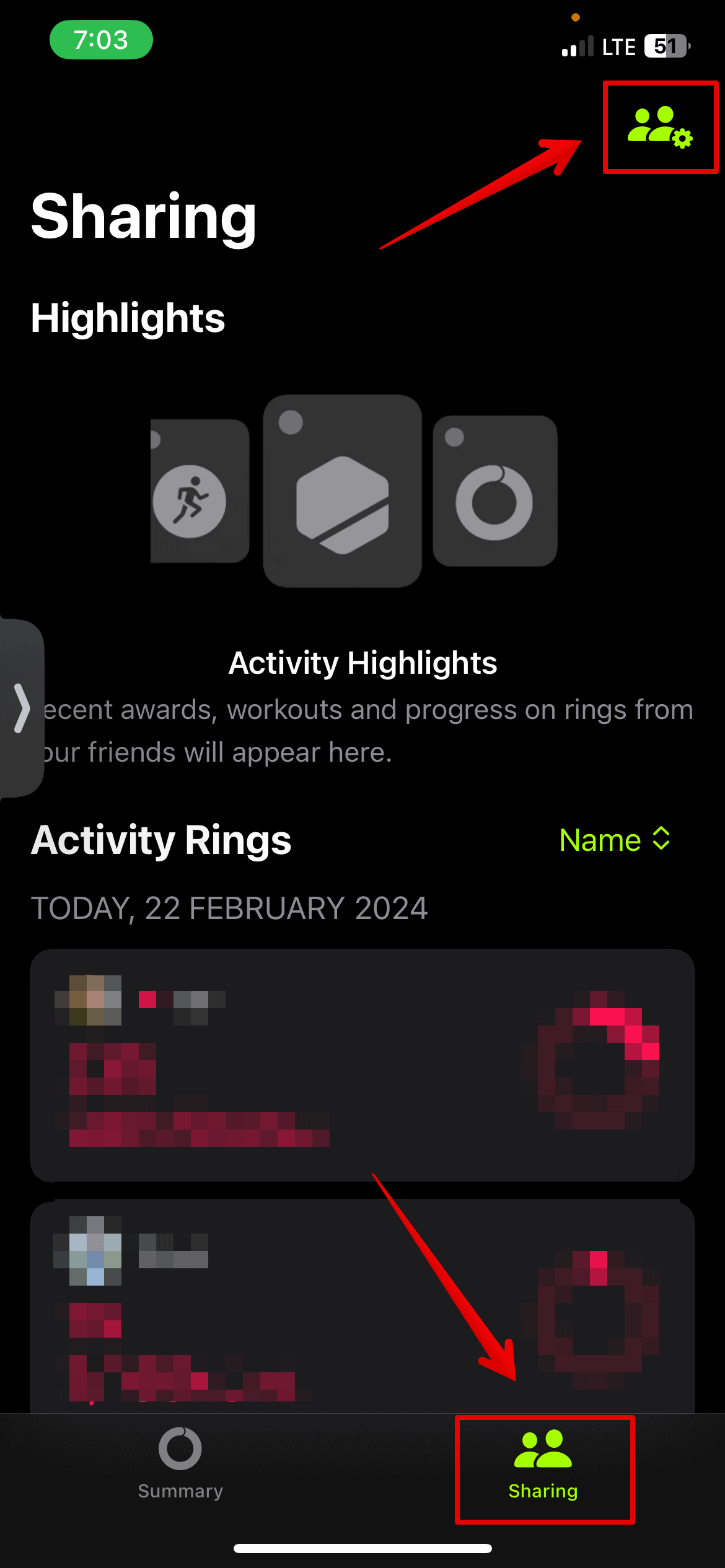
- Then select Please invite your friends.
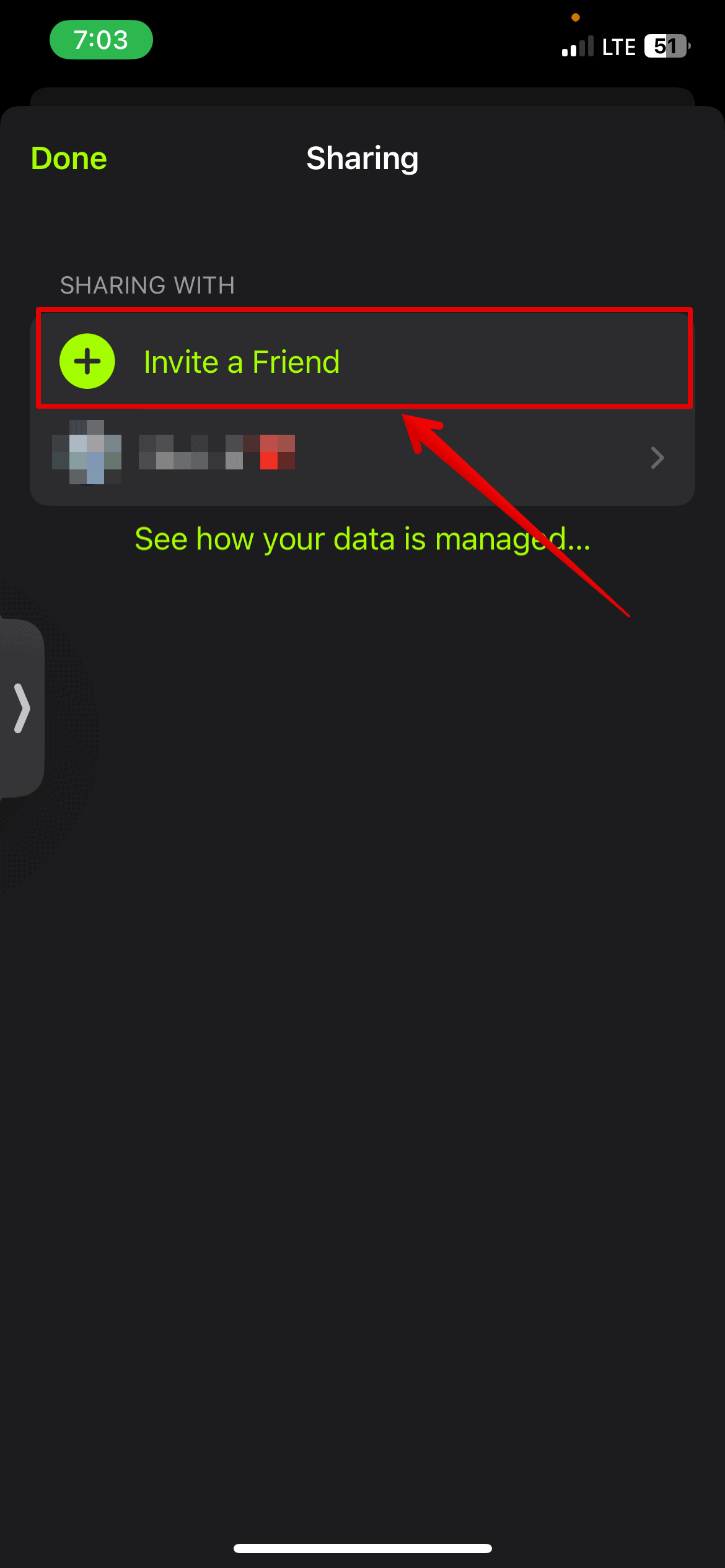
- Select and tap the friend you want to add send.
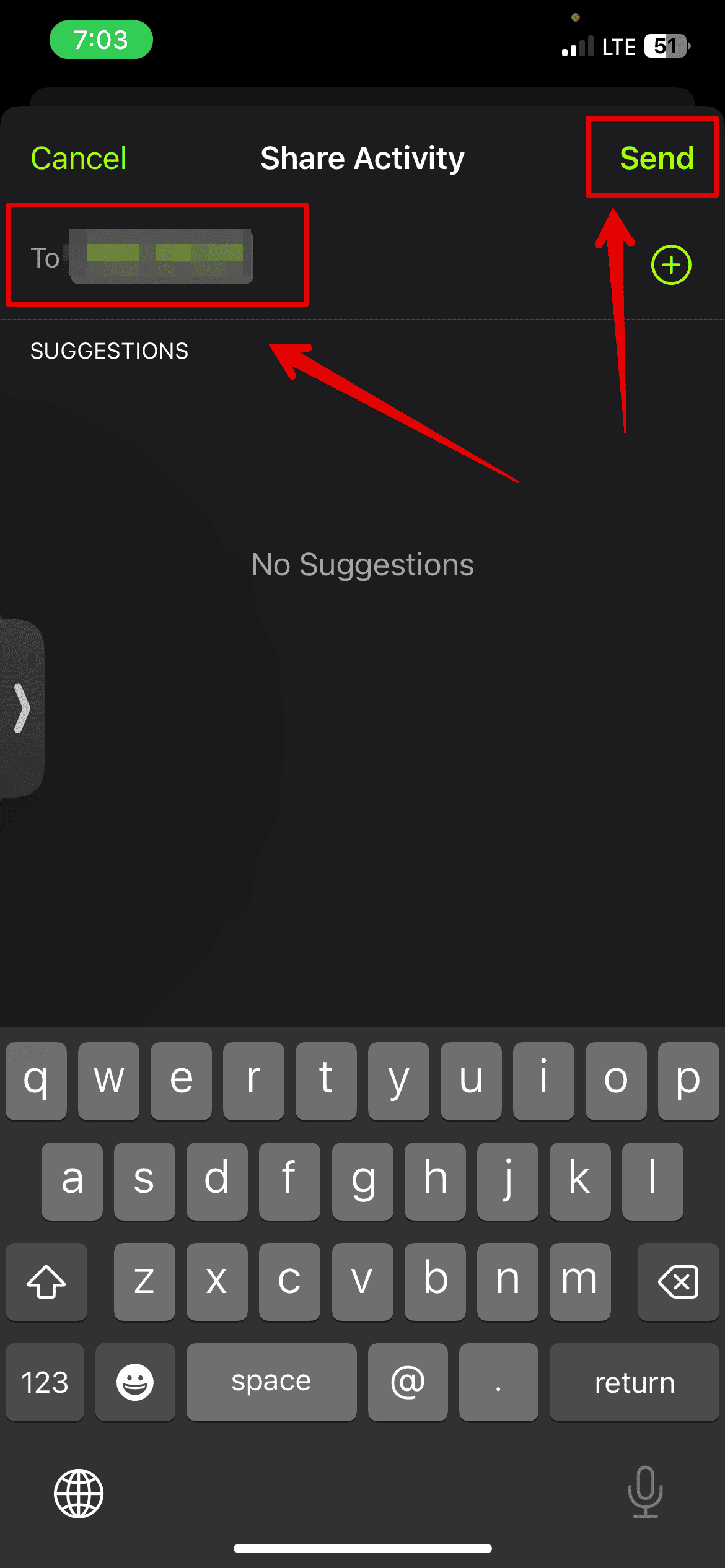


You will only be able to track your friend’s fitness activity if he or she accepts your invitation. Additionally, a stable internet connection is required to receive updates about your friends’ activities.
3. Unpair and re-pair your Apple Watch
I also checked the sharing settings for the fitness app on the device, and if it’s still not working, you can unpair and re-pair your Apple Watch. This process will reset the connection between your devices and may resolve the underlying issue.
Here are the steps:
Unpair your Apple Watch
- Open the Apple Watch app on your iPhone
- go to my watch Click the tab, then select All Clocks.
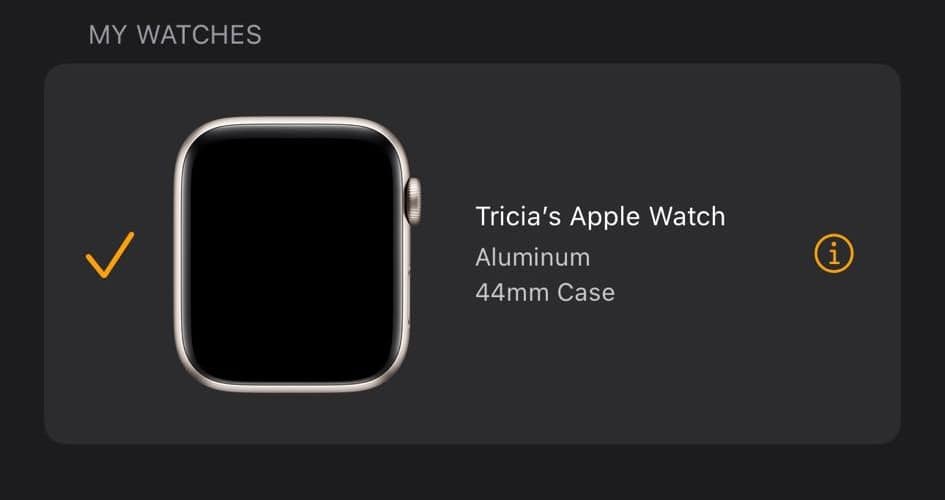
- Look for a watch here I icon.
- choose Unpair your Apple Watch.
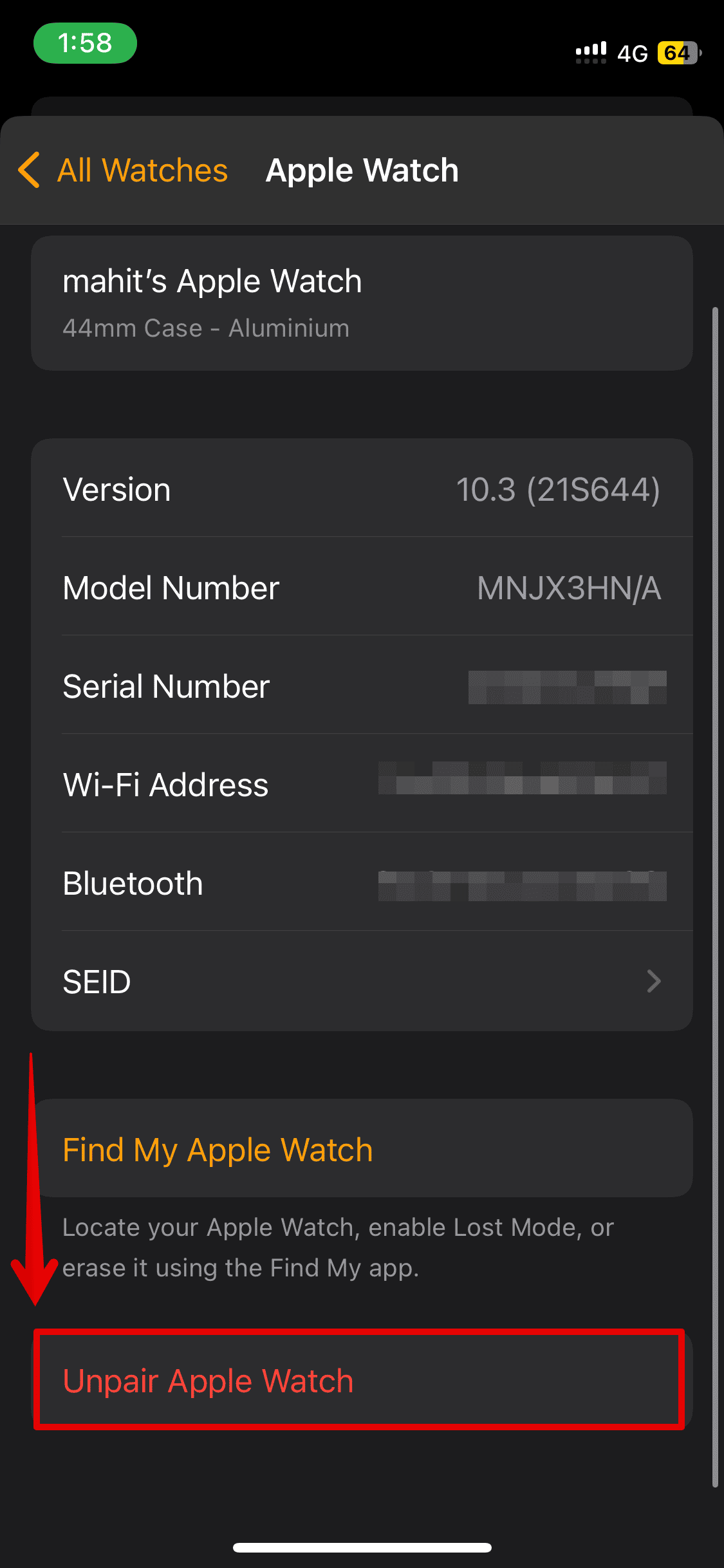
- select Unpair confirm one more time.


Once your watch is unpaired and all content is erased, you will have the option to pair your watch again.
Pair your Apple Watch
- Make sure Bluetooth is turned on and your iPhone is connected to Wi-Fi.
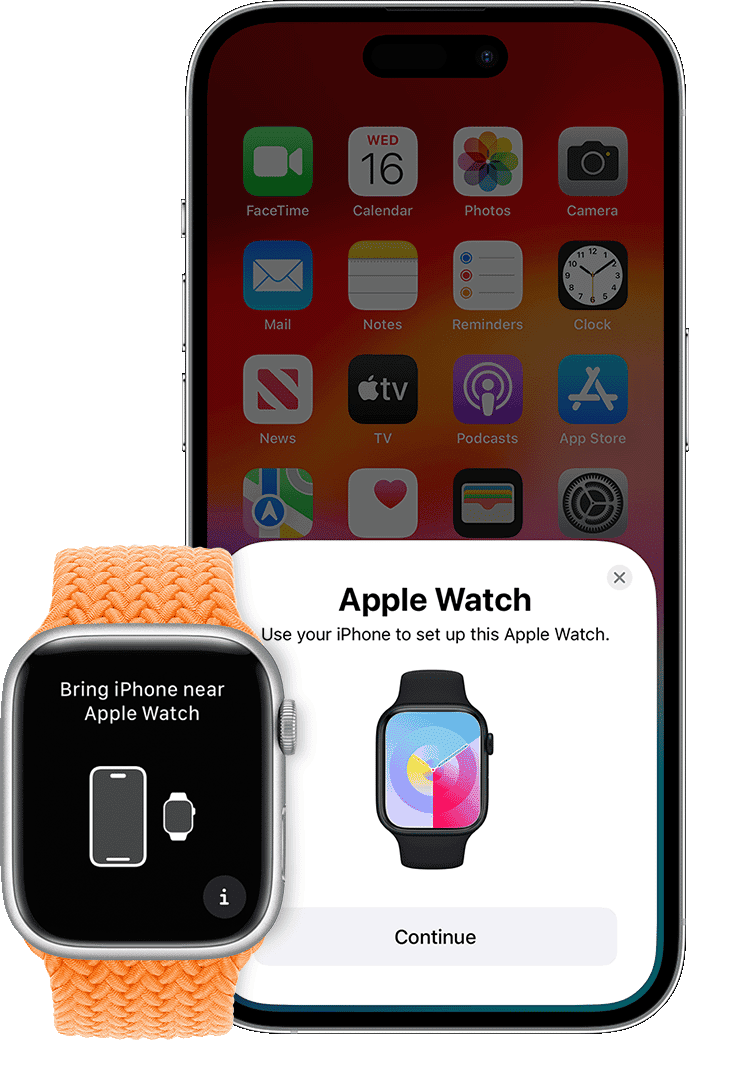
- Bring your watch, close your iPhone, and wait until you see the message “Use your iPhone to set up this Apple Watch” on the screen.
- Then tap Continue.
- Hold your Apple Watch screen in front of your iPhone’s viewfinder.
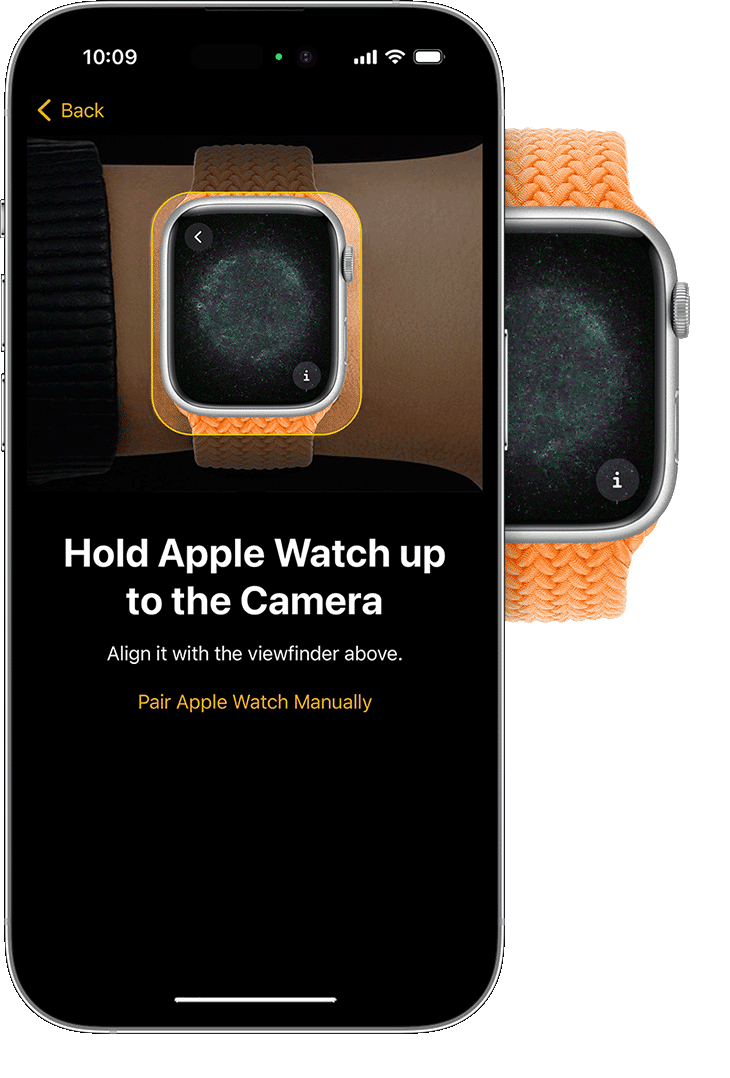
- Your watch is now paired.
- You can choose to restore the backup now or set it as a new backup.


You can now open your fitness app, reconfigure everything, and share your activities with friends and family.
4. Force restart your device
Following the solutions above, your iPhone and Apple Watch may have been restarted multiple times. However, if the fitness app is still not working properly, you may need to force restart your device.
Here’s how:
Force restart your iPhone
- Press and release the volume up button.
- Press and release the Volume Down button.
- Then press and hold the power button on the side.
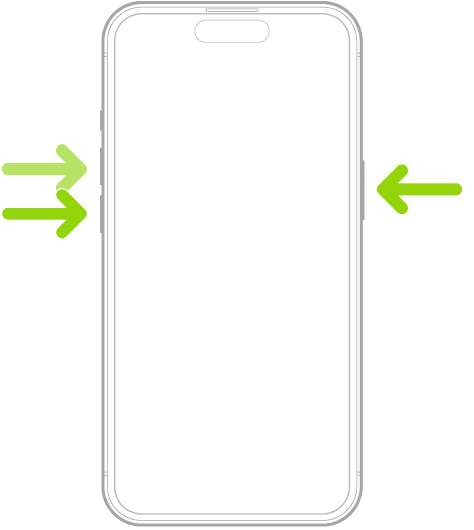
- Keep holding until your iPhone turns off and you see the Apple logo on the screen.
- Then, release it. Your iPhone will restart.

Force restart your Apple Watch
- Press and hold the digital crown and side button on your Apple Watch.
- Release when you see the Apple logo on the screen.
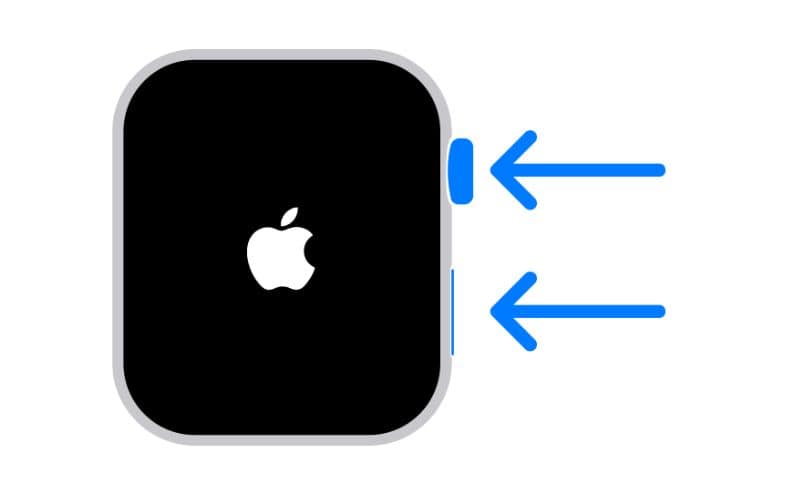

Both devices were forced to restart. This should fix the fitness app error.
5. Check your Apple ID
For Fitness Share to work properly, it’s essential to make sure you’re signed in to your iPhone and Apple Watch with the correct Apple ID. Here’s how to check on both devices:
- Open. setting Open the app and tap your name.
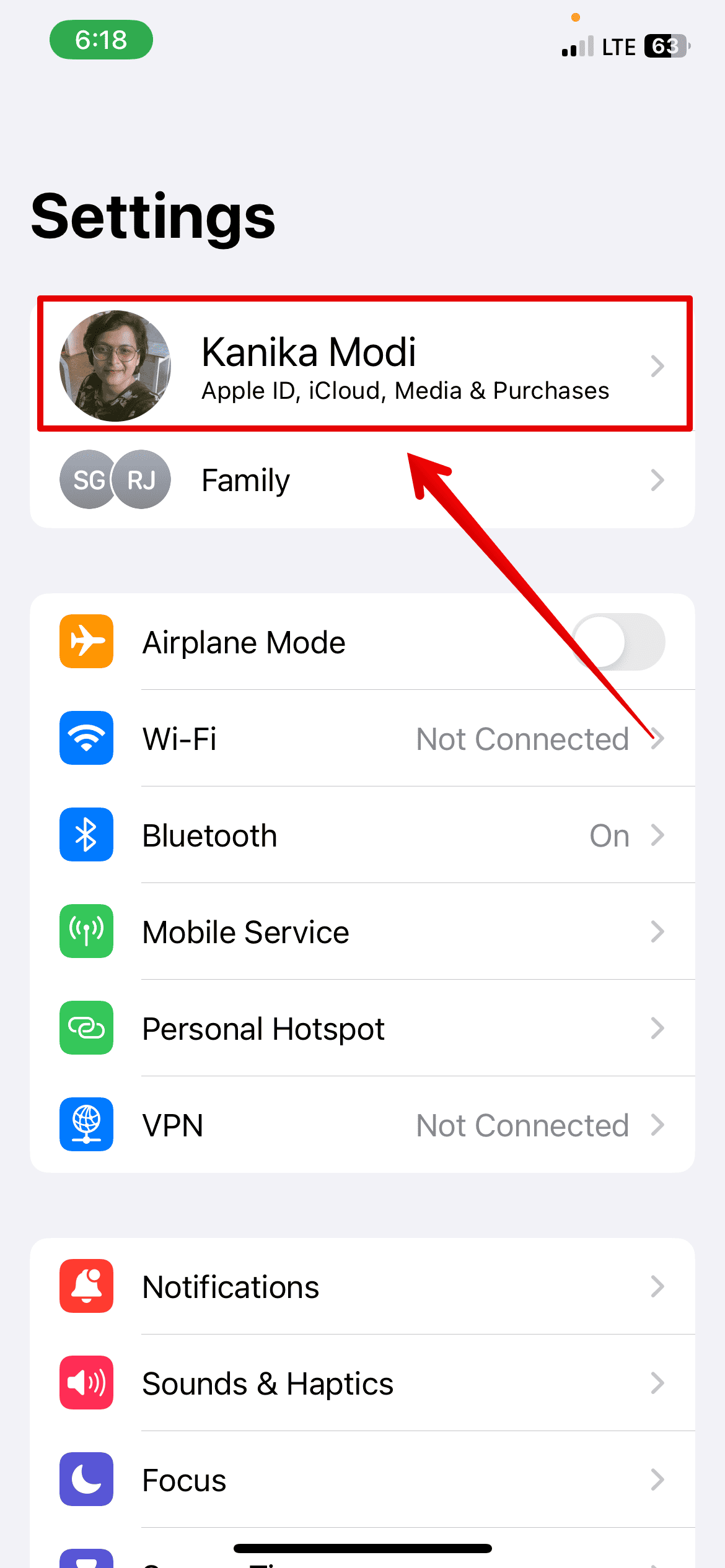
- Find your Apple ID under your name.
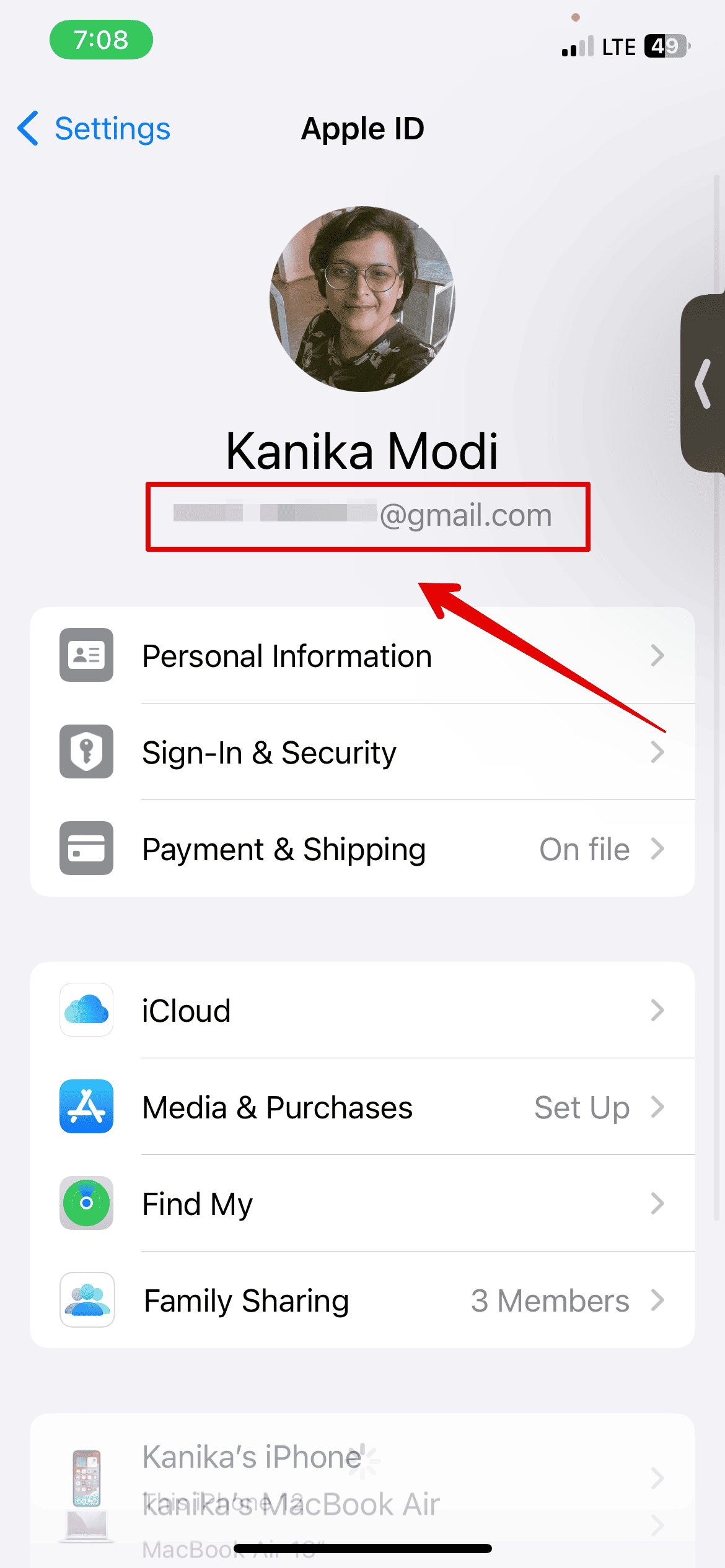


Follow the same steps above on your Apple Watch.
6. Sign out of iCloud and sign in again
Another important step to make sure your fitness apps are syncing properly between your iPhone and Apple Watch is to make sure you’re signed in to iCloud. Certain errors with iCloud can cause fitness apps to not respond effectively. Therefore, you can sign out of iCloud and sign back in to update your iCloud settings.
Here’s how:
- Open setting Tap your name on your iPhone.
- Scroll down and select sign out.
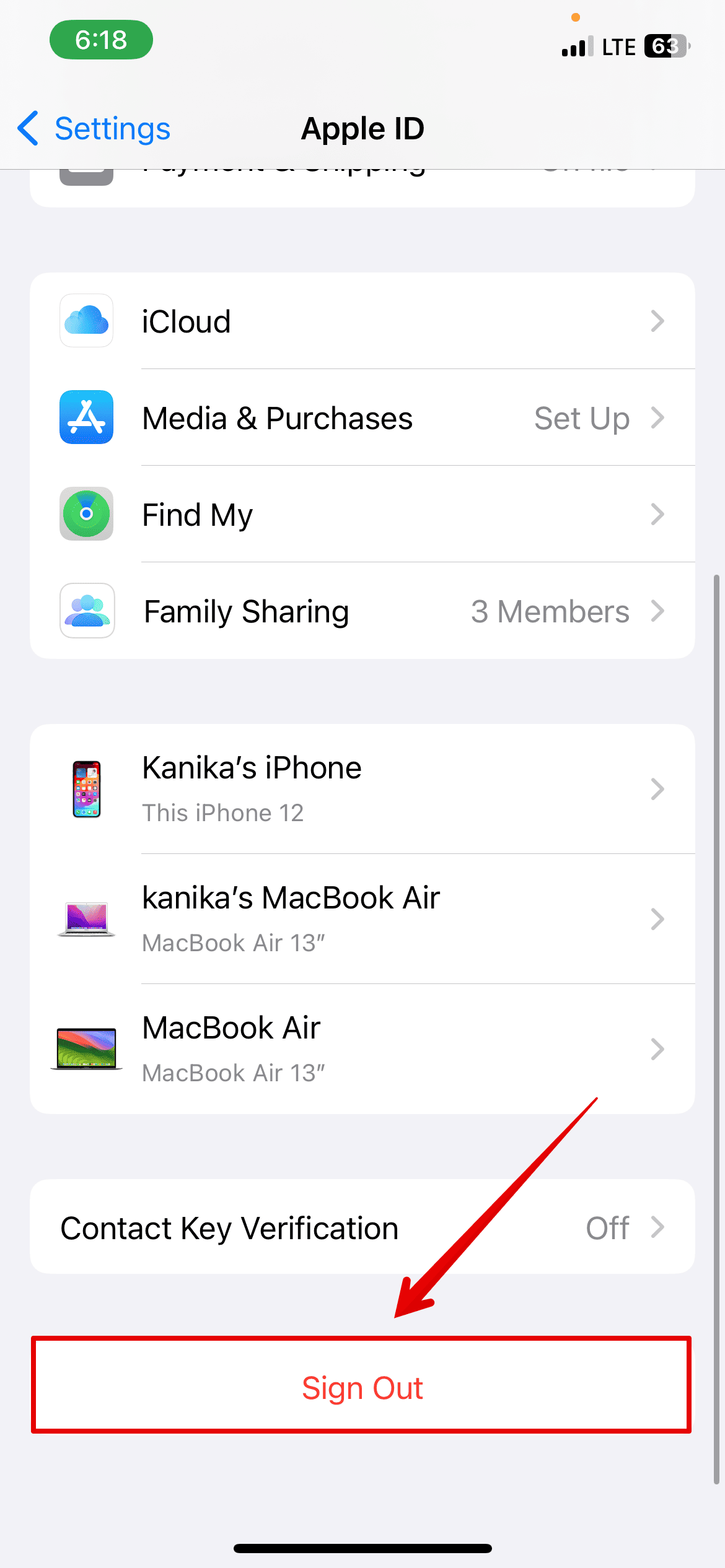
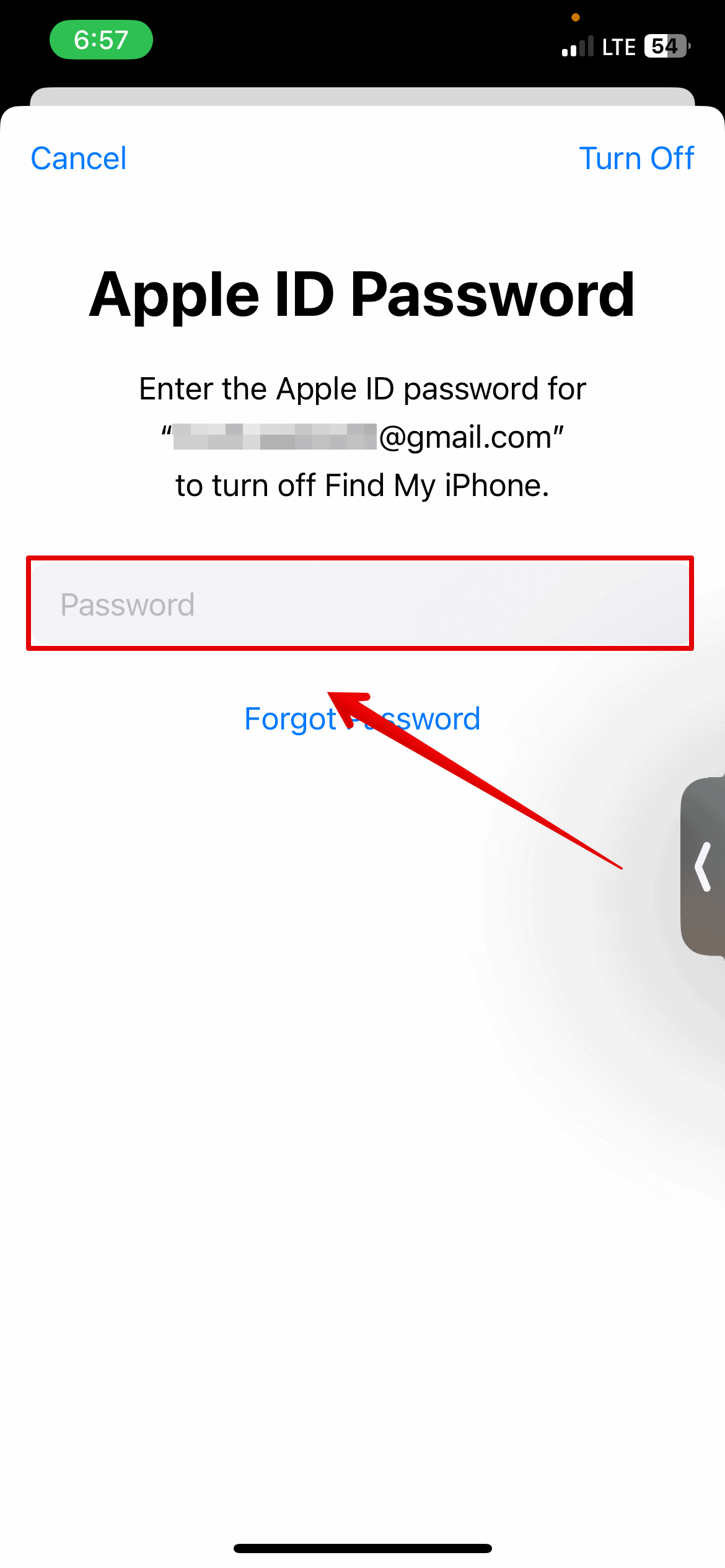
- Enter your Apple ID password.
- Then select the data you want to keep a copy of on your device.
- tap sign out.
- please select sign out confirm one more time.


You can sign in again by opening the Settings app and following the on-screen instructions.
7. Contact Apple Support
Finally, if the steps above don’t work, you can contact Apple Support through live chat. They will diagnose the problem and guide you through some troubleshooting steps. Please let us know any troubleshooting steps you have already tried.